각 모니터 시스템에 대해 이 설정 작업을 완료하십시오.
업로드 권한 역할
SAP transaction
PFCG을(를) 사용합니다.Role > Upload 로 이동하여 설치 패키지에서 _NEWR_DATA_PROVIDER.SAP 파일을 업로드합니다.
/NEWR/DATA_PROVIDER역할이 로드되는지 확인합니다.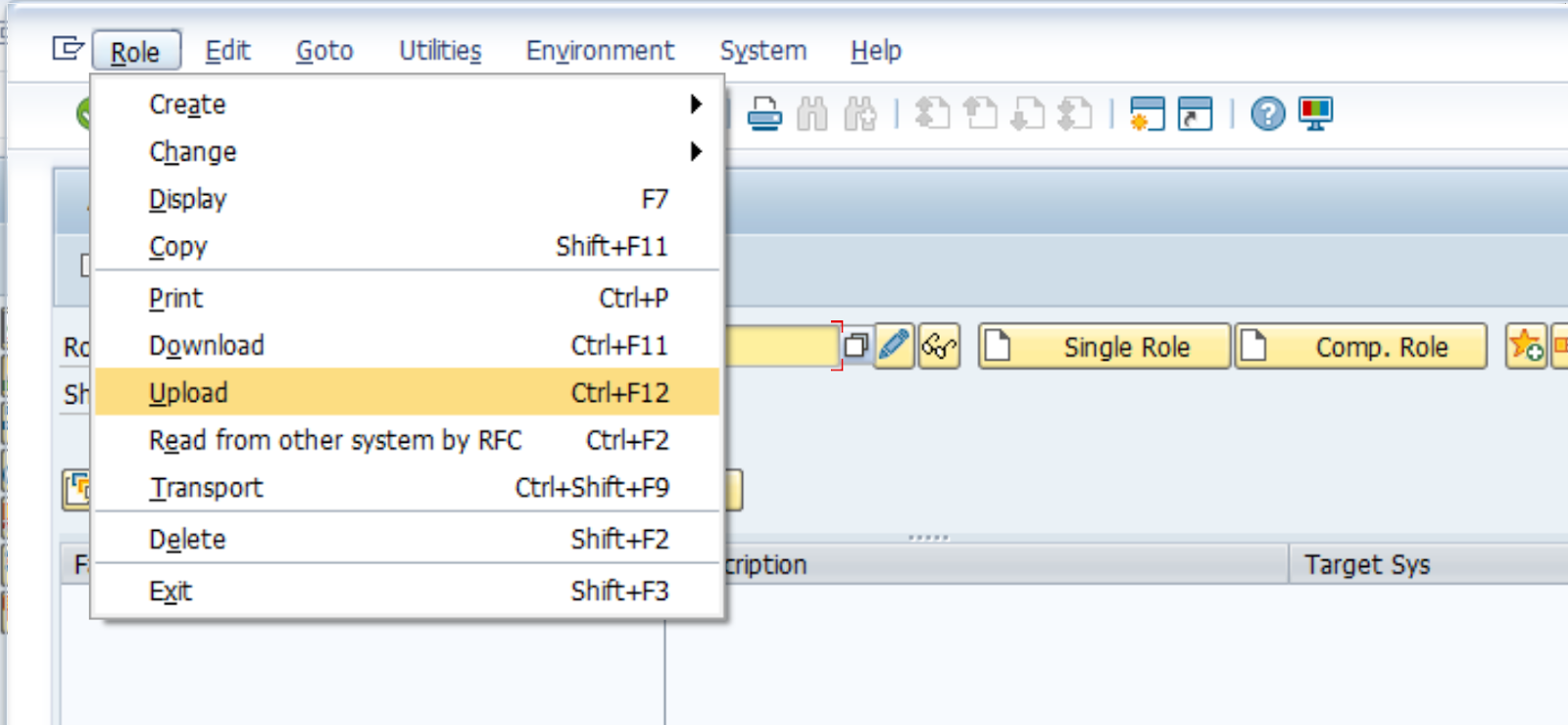

역할이 로드된 후 아이콘.
Authorizations 탭에서 다음을 선택하세요.
Change Authorization Data를 수행한 다음, 다음을 사용하여 활성화합니다.
 아이콘입니다.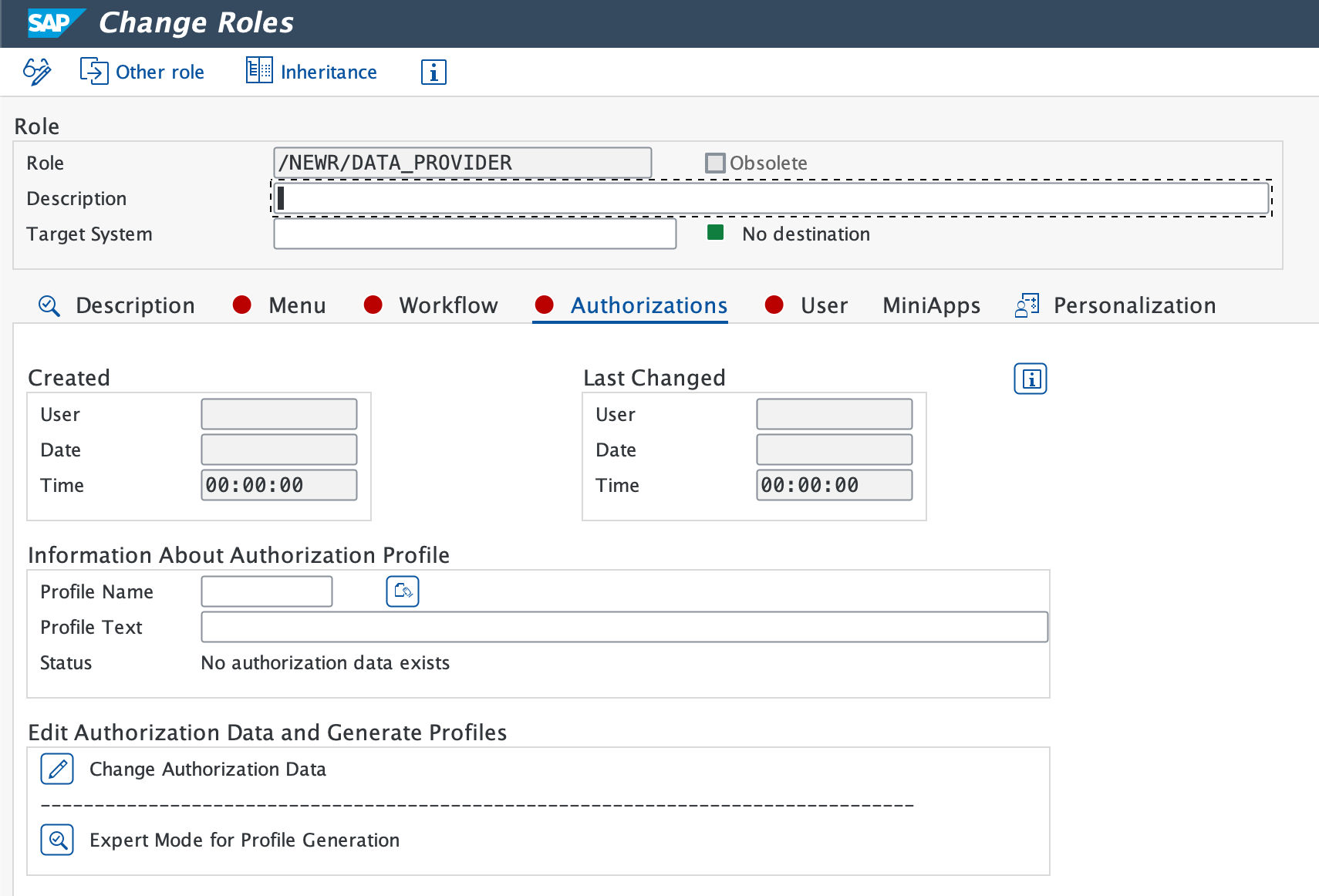
프로필 이름이 제안되면 녹색 체크 아이콘을 선택합니다.
상태 표시줄에 Profile(s) were updated 이(가) 나타나는지 확인합니다.
중요
시스템에 SLT module monitoring이(가) 필요한 경우, 설치 패키지의 _NEWR_SLT_COLLECTOR.SAP 파일에서 /NEWR/SLT_COLLECTOR 역할도 업로드하십시오.
뉴렐릭 RFC 사용자 ID 생성
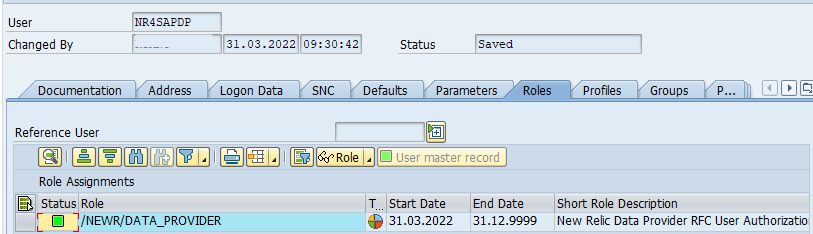
authorization profile을(를) 활성화한 후 트랜잭션 SU01을(를) 사용하여 새 RFC user ID (예: NR4SAPDP)을(를) 생성하십시오. 모니터(데이터 제공자) 시스템에서는 user type을(를) Communication (으)로 설정하고 중앙 모니터링 시스템(CMS)에서는 System (으)로 설정하십시오. 그런 다음 역할 /NEWR/DATA_PROVIDER을(를) 추가하십시오.
표준 RFC 대상
각 모니터 시스템에 대해 트랜잭션 SM59 을(를) 사용하여 RFC destination 을(를) 생성합니다.
ABAP Connections 를 선택한 다음 Create 아이콘을 클릭하여 새로운 RFC destination를 설정합니다.
기술 RFC Destination 이름을 입력합니다. 다음을 권장합니다:
NR_<SYSID>CLNT<CLNT#>Connection Type 을
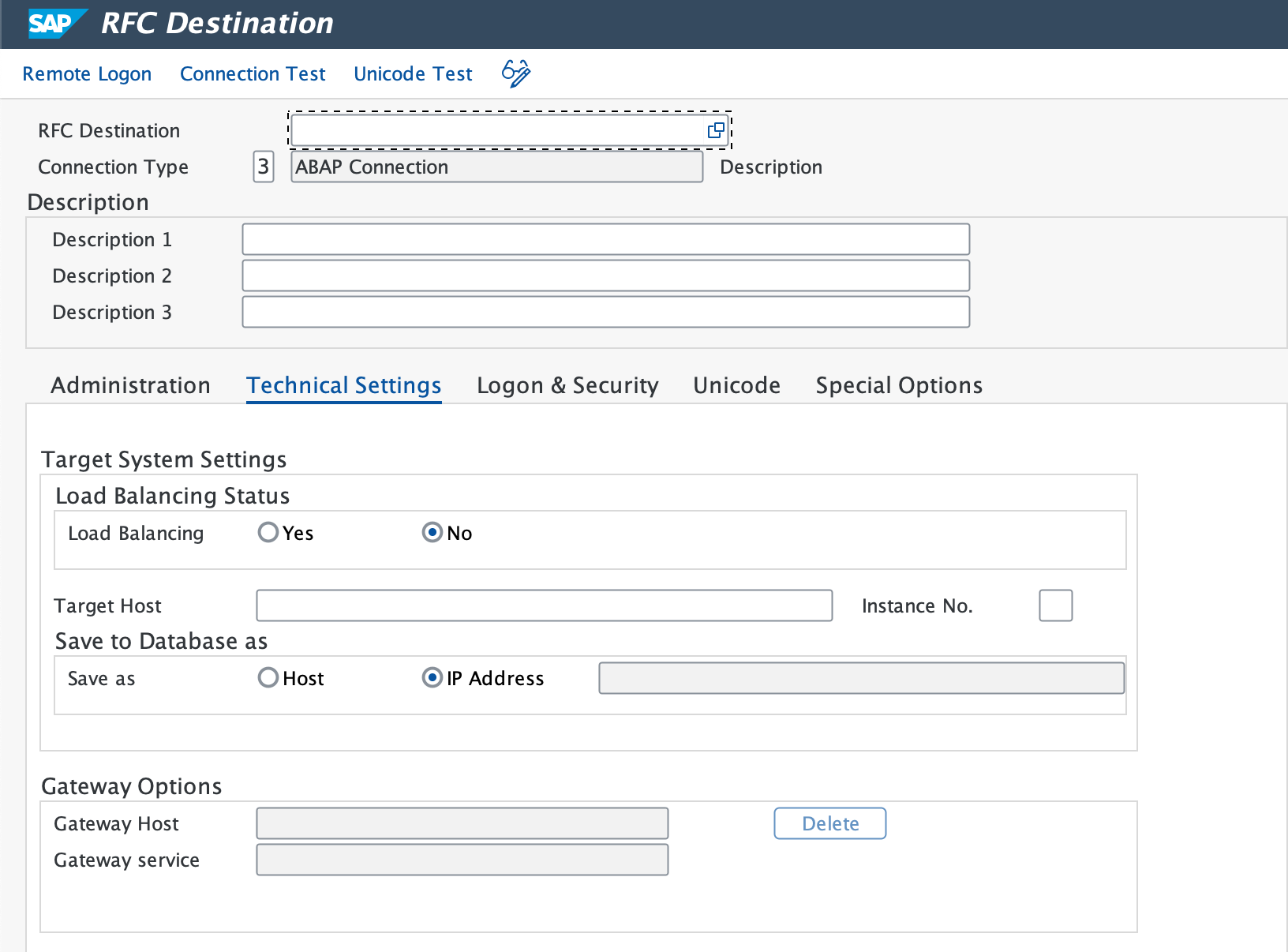
3 - ABAP Connection로 설정합니다.Technical Settings 탭에서 다음을 입력합니다:
- Target Host (정규화된 도메인 또는 IP) 및 Instance No.
- Gateway Host 그리고 필요한 경우 Service.
팁
가능한 한 load balancing을(를) 사용하십시오. 단일 연결이 끊어지더라도 데이터 수집을 계속할 수 있습니다. 자세한 단계는 SAP 문서의 로드 밸런싱을 사용하여 RFC 대상 설정을 참조하십시오.
Logon & Security 탭에서 RFC user (
NR4SAPDP)와 비밀번호를 입력합니다.Save 선택합니다.
Utility > Test > Connection Test 및 Authorization Test로 이동합니다.
- Expected result: 두 테스트 모두 성공 상태를 보여줍니다.
HTTP 대상을 뉴렐릭 cloud로 설정
트랜잭션 SM59 을 사용하여 HTTPS connections 을 New Relic API endpoints에 설정합니다.
중요
Events, Logs, Metrics, Traces 에 대해 개별 RFC destinations 을(를) 각각 생성하십시오.
Destination Name 을(를) 입력하세요(예:
NR_API_EVENT).Connection Type 을(를)
G(외부 서버에 대한 HTTP 연결)으로 설정합니다.Target Host, Service No.을(를) 443 (으)로 입력하고(HTTPS의 경우 표준 포트 참조), Path Prefix를 입력하십시오(자세한 내용은 설치 준비 체크리스트 참조).
프록시가 필요한 경우 Technical Settings 탭에서 구성하세요.
Security Options 탭에서 SSL에 대한 Active 옵션을 선택합니다.
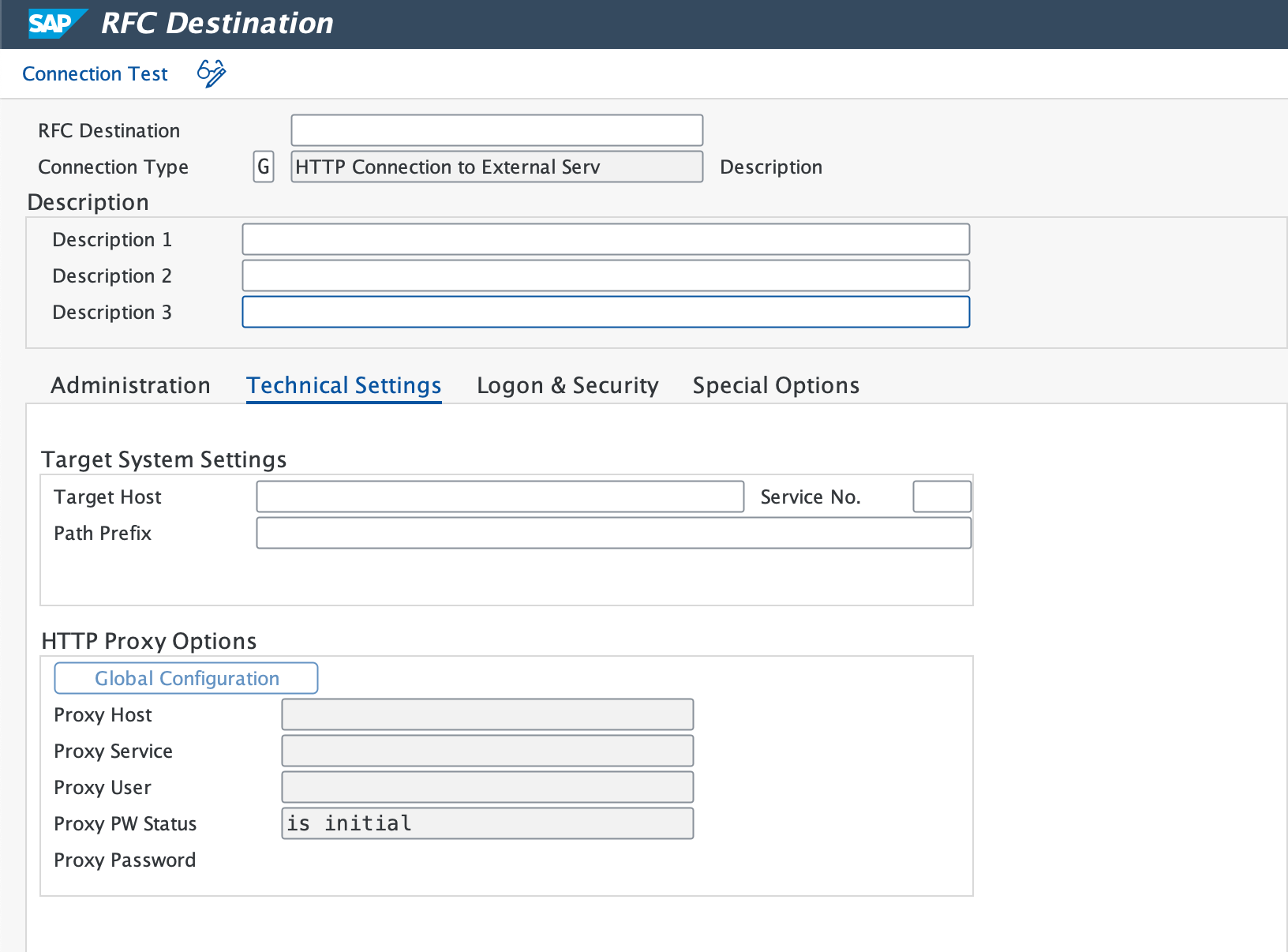
SSL 인증이 아직 구성되지 않은 경우, 브라우저의 뉴렐릭 엔드포인트에서 root and intermediate certificates을(를) 다운로드하고 트랜잭션
STRUST을(를) 사용하여 SAP (으)로 가져오십시오.Connection Test 을(를) 선택하여 연결을 확인합니다.
- Expected result: 연결에 성공하면 로그온 데이터를 입력하라는 프롬프트가 표시됩니다.
- If test times out: 방화벽이 연결을 차단하고 있을 가능성이 높습니다. 네트워크 팀에 문의하여 New Relic domains에 대한 액세스 권한이 부여되었는지 확인하십시오.
로그온 프롬프트에서 Cancel을(를) 선택하여 계속 진행하십시오. HTTP 4xx 응답 코드 화면은 연결이 작동하고 있음을 확인합니다.
모든 New Relic API endpoints에 대해 이 절차를 반복합니다.
Cloud(BTP) RFC 대상
서비스에 해당하는 탭을 선택하십시오:
다운로드한 Service Key을(를) 열어
clientId,clientsecret및tokenurl을(를) 식별하고 기록하십시오.웹 브라우저를 사용하여 서비스 키에 지정된 URL로 이동합니다.
해당 페이지에서 SAP on demand, Digicert global 및 Digicert root 인증서를 가져옵니다.
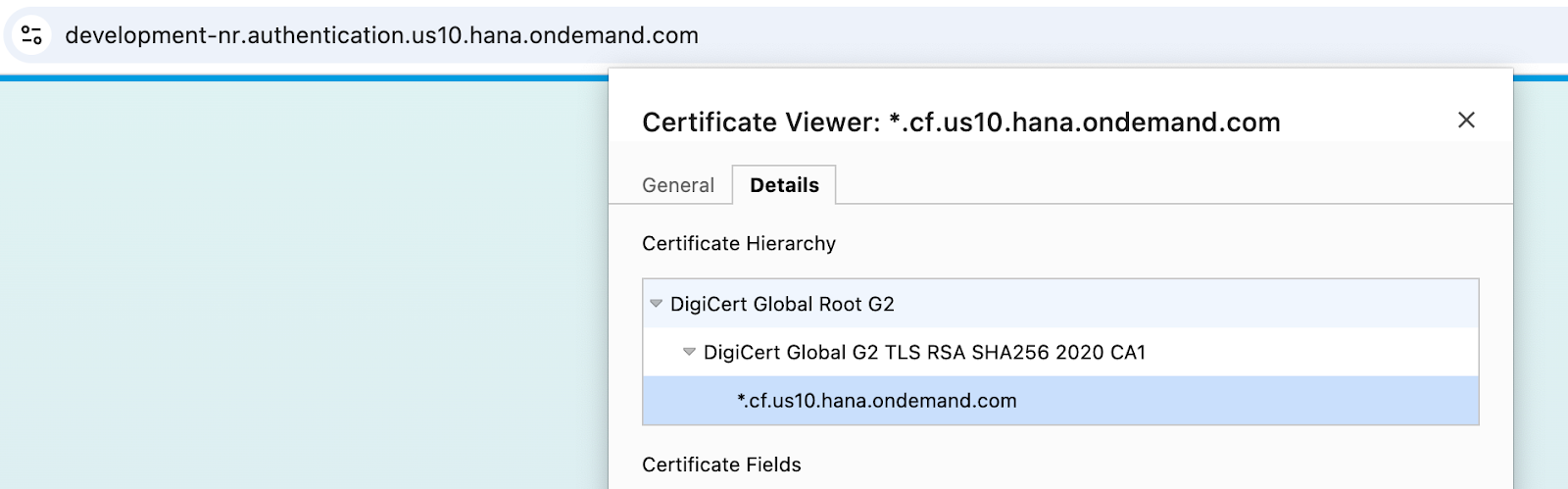
편집 모드에서 트랜잭션 코드
STRUST(으)로 이동하여 SSL Client (Standard)을(를) 선택하십시오.3개의 인증서를 개별적으로 업로드하고 각각에 대해 Add to Certificate List을(를) 선택한 다음 변경 사항을 저장하십시오.
Tcode
SMICM(으)로 이동한 다음 Administration > ICM > Exit Soft > Global를 선택합니다. 이 작업을 실행하면 시스템 내의 모든 ICM processes이(가) 다시 시작됩니다.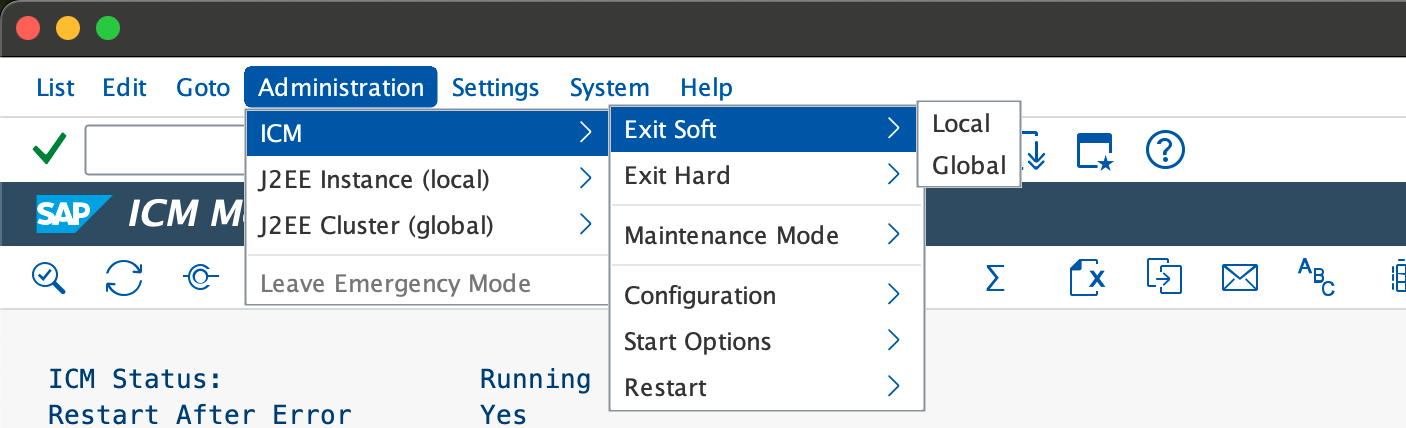
SAP 시스템에 접속하여 트랜잭션 코드
SM59(으)로 이동한 다음, HTTP Connections to External Server 범주 내에 새 RFC connection을(를) 설정하십시오.토큰 URL을 각각의 호스트 및 경로 접두사 구성 요소로 나누어 대상을 설정하십시오.
서비스 번호를
443(으)로 설정하고?grant_type=client_credentials을(를) 추가하여 경로 접두사를 수정하십시오.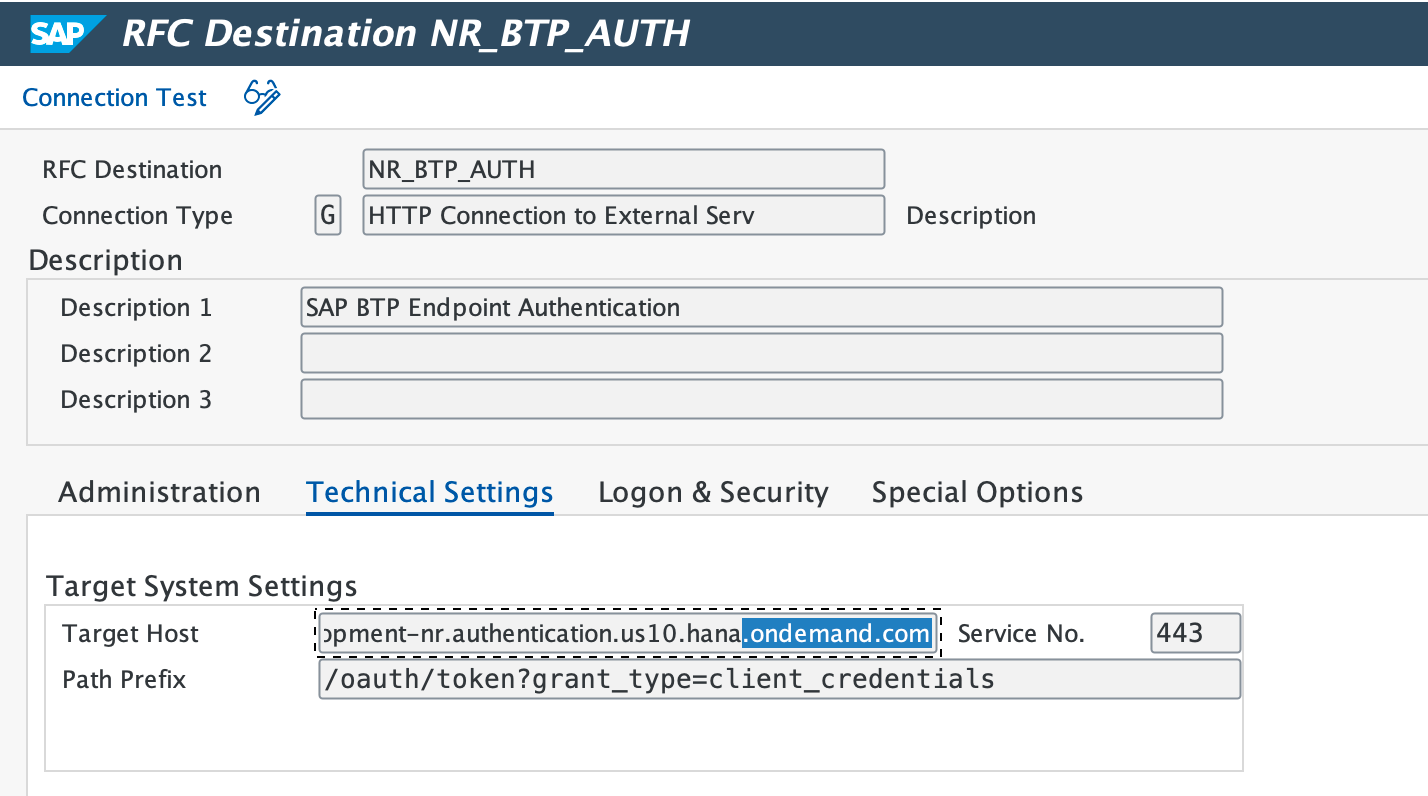
Login & Security 탭에서 Basic Authentication 을(를) 선택하고 사용자 이름과 비밀번호로
clientId및clientsecret을(를) 입력합니다.Secure Protocol 상태를 Active (으)로 설정하고 설정을 저장합니다.
Connection Test 선택합니다.
다운로드한 Service Key에서
clientId,clientsecret및url를 확인하세요.웹 브라우저에서 url 로 이동하여 Digicert root, global 및 SAP on demand 인증서를 다운로드하세요.
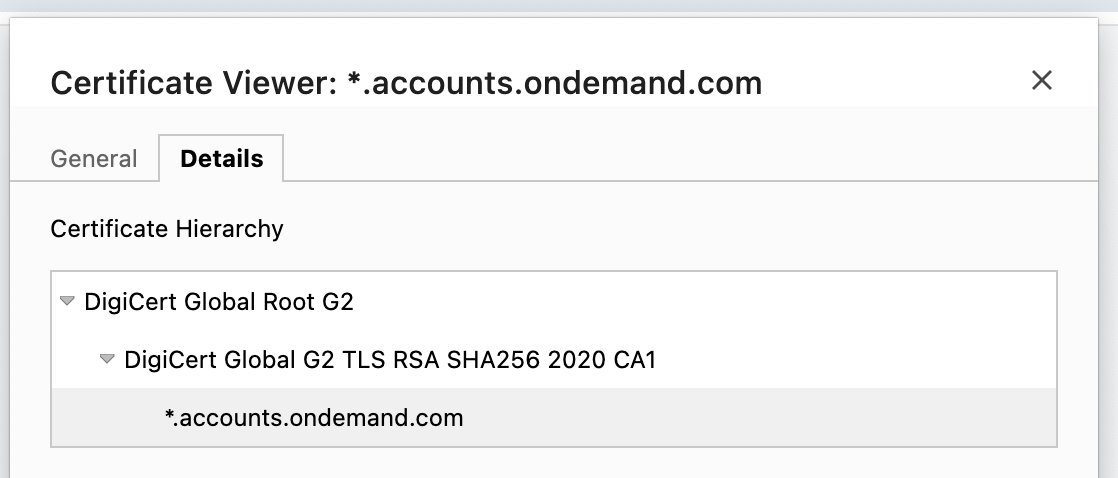
편집 모드에서 트랜잭션 코드
STRUST(으)로 이동하여 SSL Client (Standard)을(를) 선택하십시오.3개의 인증서를 각각 개별적으로 업로드한 다음 Add to Certificate List을(를) 선택하고 변경 사항을 저장하십시오.
Tcode
SMICM(으)로 이동한 다음 Administration > ICM > Exit Soft > Global를 선택합니다. 이 작업을 실행하면 모든 시스템 ICM processes이(가) 다시 시작됩니다.SAP 시스템에 로그인한 후 트랜잭션 코드
SM59에 액세스한 다음 HTTP Connections to External Server 범주 아래에 새 RFC connection을(를) 설정합니다.적절한 URL로 Target Host을(를) 설정하고 Service No.을(를)
443(으)로 설정합니다. Path Prefix을(를)/oauth/token?grant_type=client_credentials(으)로 설정합니다.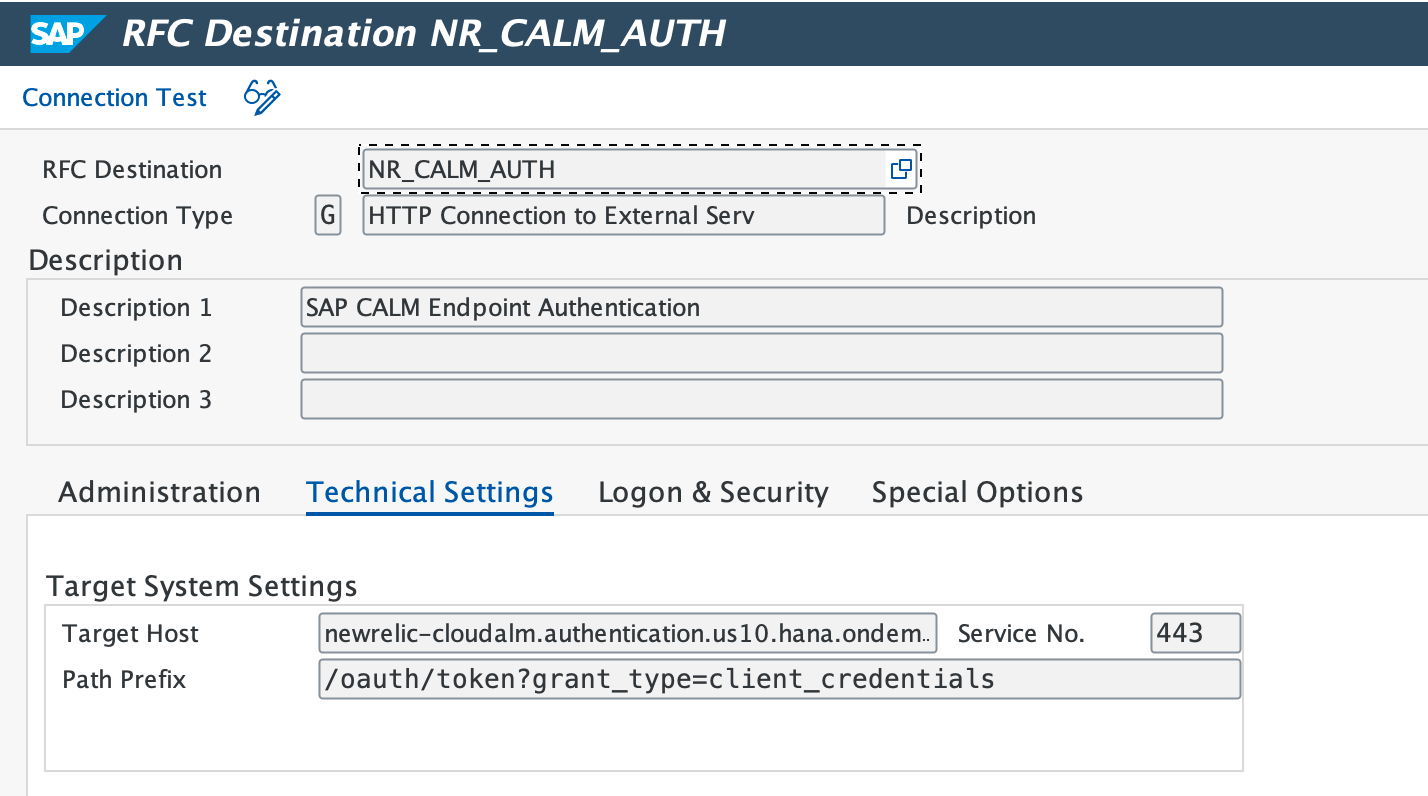
Login & Security 탭으로 이동하여 Login with user 섹션에서 Basic Authentication을(를) 선택하십시오.
clientId을(를) 사용자 이름으로,clientsecret을(를) 비밀번호로 제공하십시오.아래에서 Secure Protocol 상태를 찾아 Active(으)로 설정합니다.
저장하여 설정 변경 사항을 적용한 다음 Connection Test을(를) 선택합니다.
데이터베이스 연결 생성
트랜잭션 DBACOCKPIT을(를) 사용하여 원격 HANA Database connections을(를) 정의합니다. 왼쪽 창에서 Database Connections을(를) 두 번 클릭한 다음 Add을(를) 선택하여 새 연결을 생성하십시오.
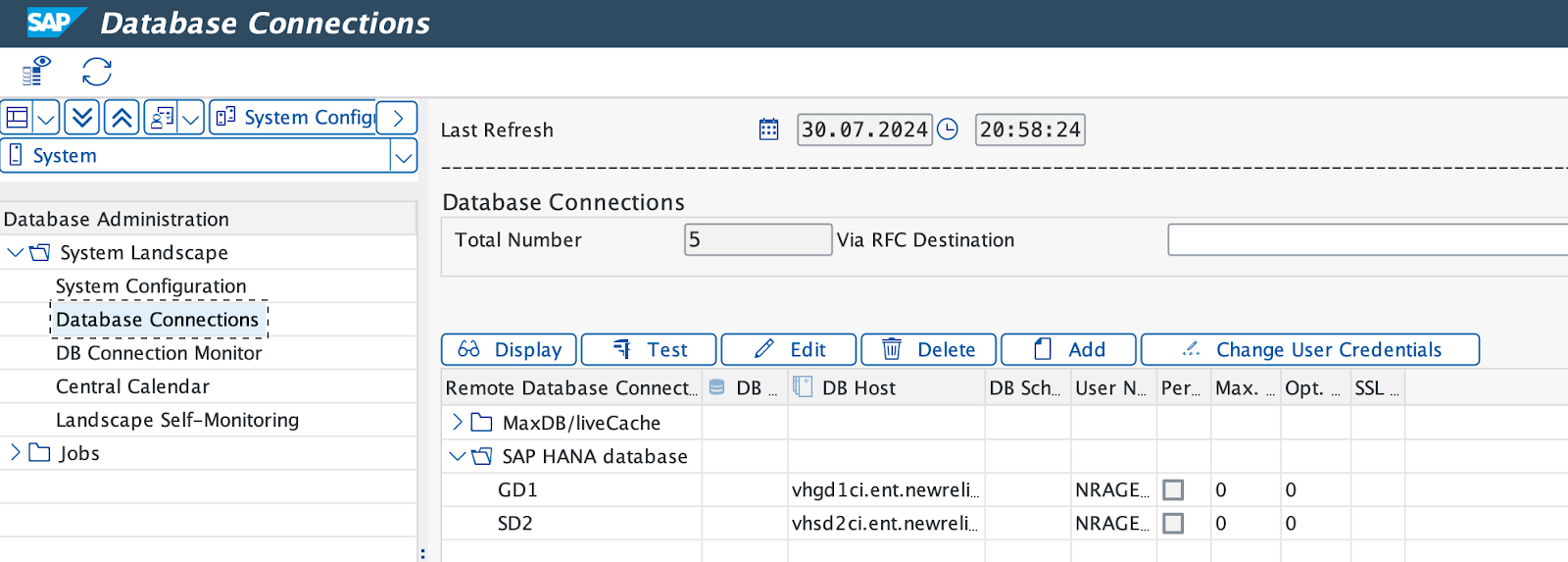
Database Details에서 다음 단계를 수행하십시오:
Connection Name을(를) 입력합니다(SAP system ID 사용을 권장합니다).
지정된 Database System(으)로 HANA Database을(를) 선택하십시오.
데이터베이스 사용자 ID(
NRAGENT이(가) 권장 ID임)를 제공한 다음 비밀번호를 입력하고 확인하십시오.Database Host 및 SQL Port을(를) 입력하십시오.
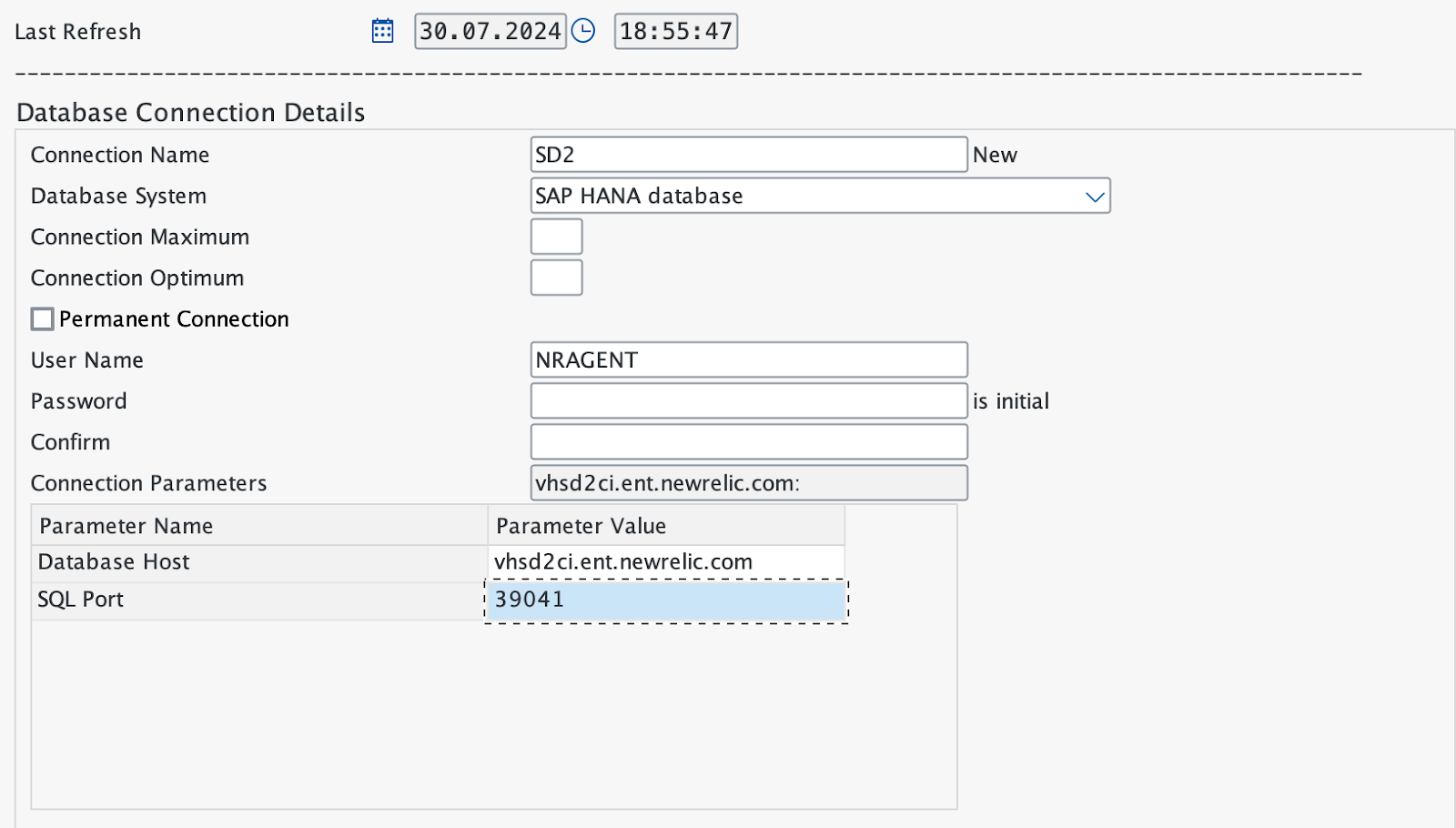
항목을 저장한 후 Test을(를) 선택하여 데이터베이스 연결을 확인하십시오.
- Expected result: 연결 테스트가 성공 상태를 표시합니다.