preview
We're still working on this feature, but we'd love for you to try it out!
This feature is currently provided as part of a preview program pursuant to our pre-release policies.
This page covers two ways Workflow Automation integrates with notifications:
- Send notifications from workflows: Use Slack, PagerDuty, email, or webhook actions within your workflows to notify teams when workflows complete, fail, or require approval.
- Trigger workflows from alerts: Configure Workflow Automation as a destination in New Relic alerts to automatically start workflows when alert conditions are breached.
Importante
Two different concepts:
- Outbound notifications: Your workflow sends messages to Slack/PagerDuty using actions like
slack.chat.postMessage - Inbound triggers: New Relic alerts trigger your workflow to run, passing
issueIdautomatically
Send notifications from workflows
Use these notification channels to alert your team from within your workflows. Select the right channel for your use case:
Channel | Best for | Setup complexity | Features |
|---|---|---|---|
Slack | Team collaboration, approvals | Easy - requires bot token | Rich messages, reactions, threads |
PagerDuty | Incident management, on-call | Easy - requires API key | Escalation policies, incident tracking |
Formal notifications, reports | Easy - requires destination setup | Attachments, HTML formatting, query results | |
Webhooks | Custom integrations | Medium - requires endpoint | Flexible payload, any system |
Before you begin
Before configuring notifications, ensure you have:
- A workflow created in your account (from template or custom-built).
- Credentials for your notification channel (Slack bot token, PagerDuty API key, etc.).
- Credentials stored in secrets manager.
Sugerencia
For sending notifications from workflows: Use the actions catalog to add notification actions directly in your workflow steps:
- Slack: Use
slack.chat.postMessagefor direct Slack integration - PagerDuty: Use PagerDuty actions for incident management
- Email: Use
newrelic.notification.sendEmailafter setting up email destinations in Alerts > Destinations
Trigger workflows from alerts
Configure Workflow Automation as a destination in New Relic alerts to automatically start workflows when alert conditions are breached. When triggered by an alert, workflows automatically receive issueId and accountId as inputs.
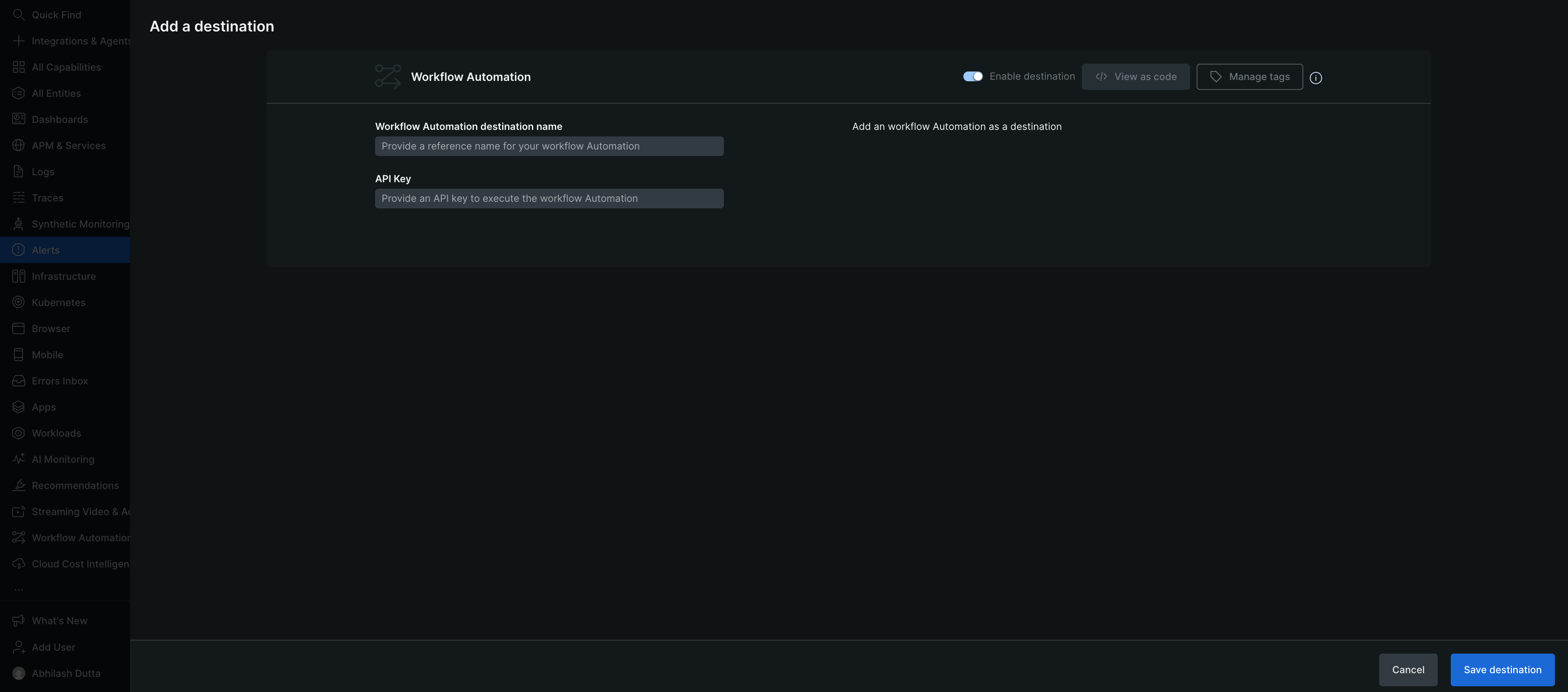
Navigate to one.newrelic.com > All capabilities > Alerts > Destinations, and select Workflow Automation.
To configure the Workflow Automation, enter the required information, such as the Workflow Automation destination name (a unique name for the Workflow Automation) and the API Key.
Click Save destination.
Create an alert notification workflow
After setting up Workflow Automation as a destination, create an alert notification workflow to define which alerts trigger your workflows.
Importante
The steps below are for configuring alert notification workflows (part of New Relic Alerts), not Workflow Automation. Alert notification workflows route issues to destinations, including the Workflow Automation destination you configured above. For complete documentation on alert workflows, see Incident workflows.
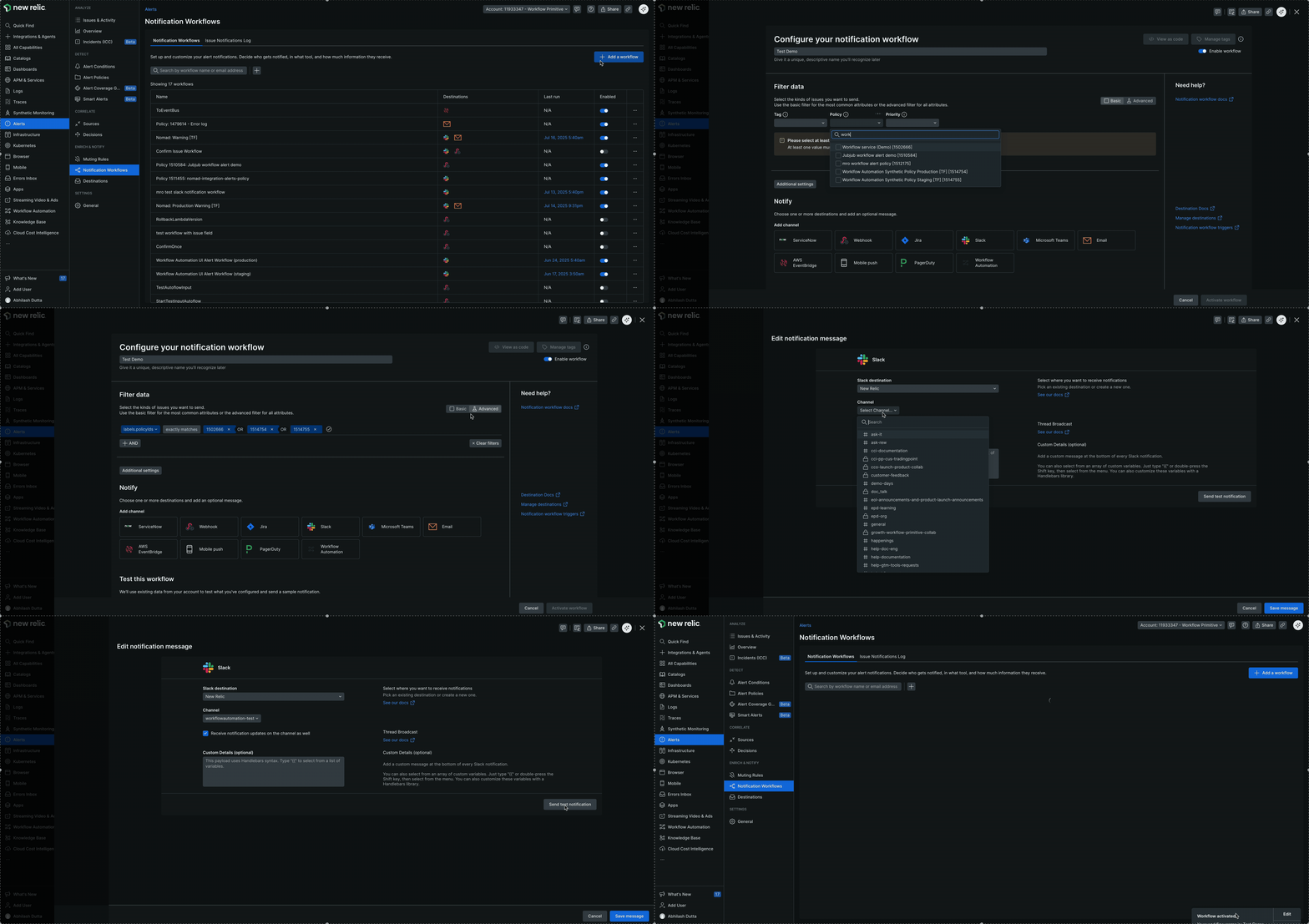
Go to Alerts > Notification Workflows, and select + Add a workflow.
To configure your notification workflow, on the Configure your notification workflow page, provide the required information:
- Enter a unique name that you will recognize.
- Select the Tag, Policy, and Priority attributes from their respective dropdowns in the Basic filter option to receive notifications about an incident, or opt for the Advanced filter option to choose Attributes, Operators, and Values for more detailed incident notifications.
- Click Additional settings to enrich your data by building NRQL queries to gather related data from across your New Relic platform. For enrichment examples, see Workflow data enrichment.
To specify notification destinations, in the Notify section, choose the Workflow Automation destination you created in the previous step.
(Optional) You can also add other destinations like Slack to receive notifications alongside triggering the workflow:
- Select the Slack destination from the drop-down list.
- Choose the Channel from the drop-down list and check the Receive notification updates on the channel checkbox.
- Optionally, add a custom message in the Custom Details section.
Sugerencia
We recommend sending a test notification using Send test notification. - Select Save message.
Select Activate workflow.
What data is passed to Workflow Automation
When an alert triggers your Workflow Automation:
issueId: Automatically passed to your workflow. Your workflow must accept this as an input parameter. As documented in Create your own workflow, theissueIdis "provided automatically when the workflow runs from an alert."accountId: Your New Relic account ID. Your workflow must accept this as a required input parameter.
Your Workflow Automation definition must declare these inputs. For example:
workflowInputs: accountId: type: Int issueId: type: StringImportante
Inputs without a defaultValue are required and must be provided when the workflow is triggered. You can then use issueId to query alert details using the NerdGraph API within your workflow.
What's next
- Actions catalog: View all available AWS, New Relic, and integration actions.
- Use a template: Deploy pre-configured workflows for common scenarios.
- Create your own workflow: Build custom workflows from scratch.